On your Mac
Snapperon recognizes screenshot text on your Mac.
Screenshot studio for Mac
Show clients exactly what you mean. Mark the detail on a screenshot, cover a private number, or turn a client quote into a graphic. Click Copy + Close and paste the finished image straight into your email, deck, or proposal.
macOS 14+Apple silicon (M1 or newer)
No account needed
Email yourself the link and open it when you’re back at your Mac.
Snapperon recognizes screenshot text on your Mac.
Solid redaction covers private details in the image you copy or save.
Download the app, drag it into Applications, and open your first screenshot.
The Mac download is signed by the developer and notarized by Apple.
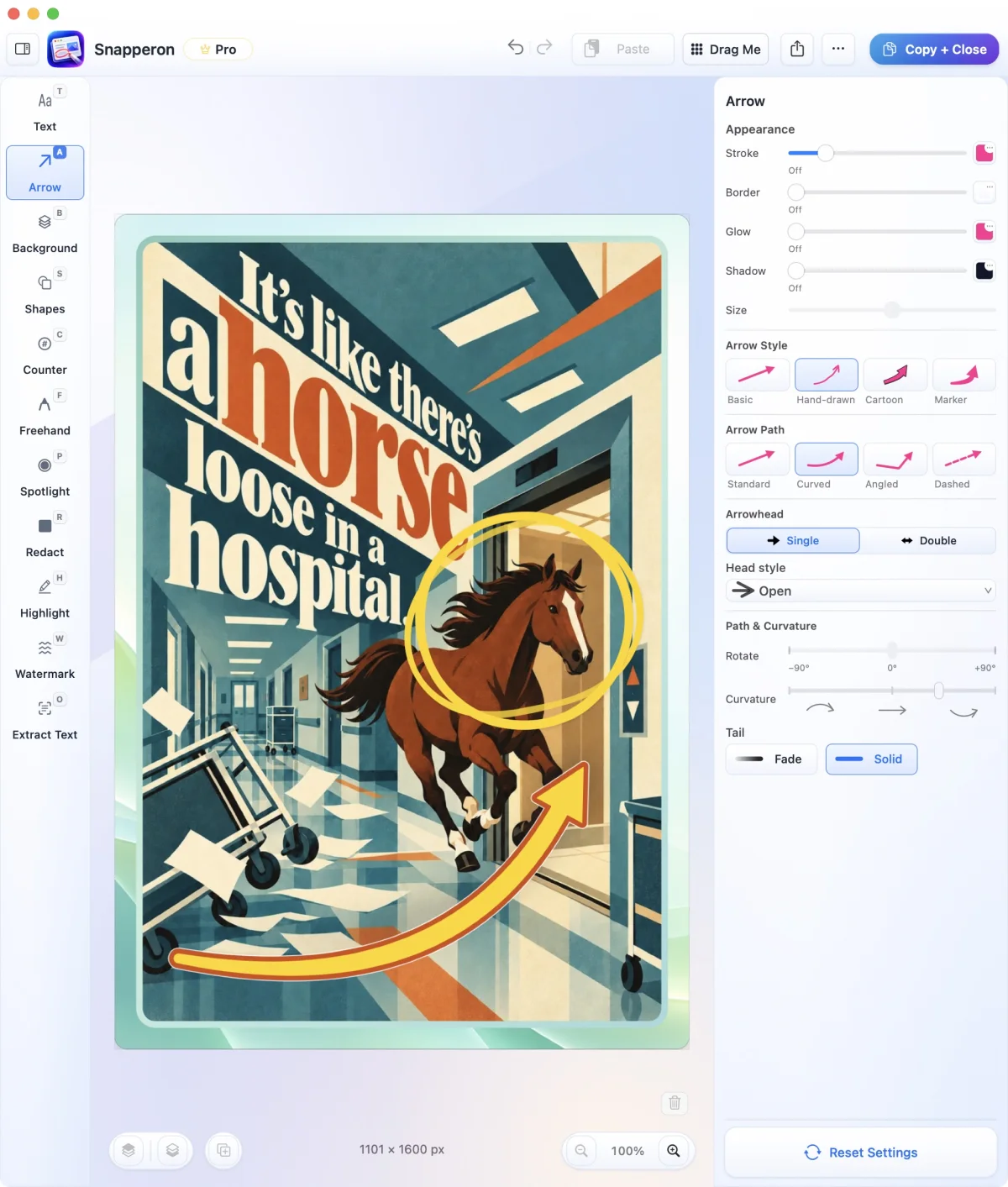
When a client opens your proposal, what should they notice first? Point out the change, protect the details, or give the finished image a place on the slide.
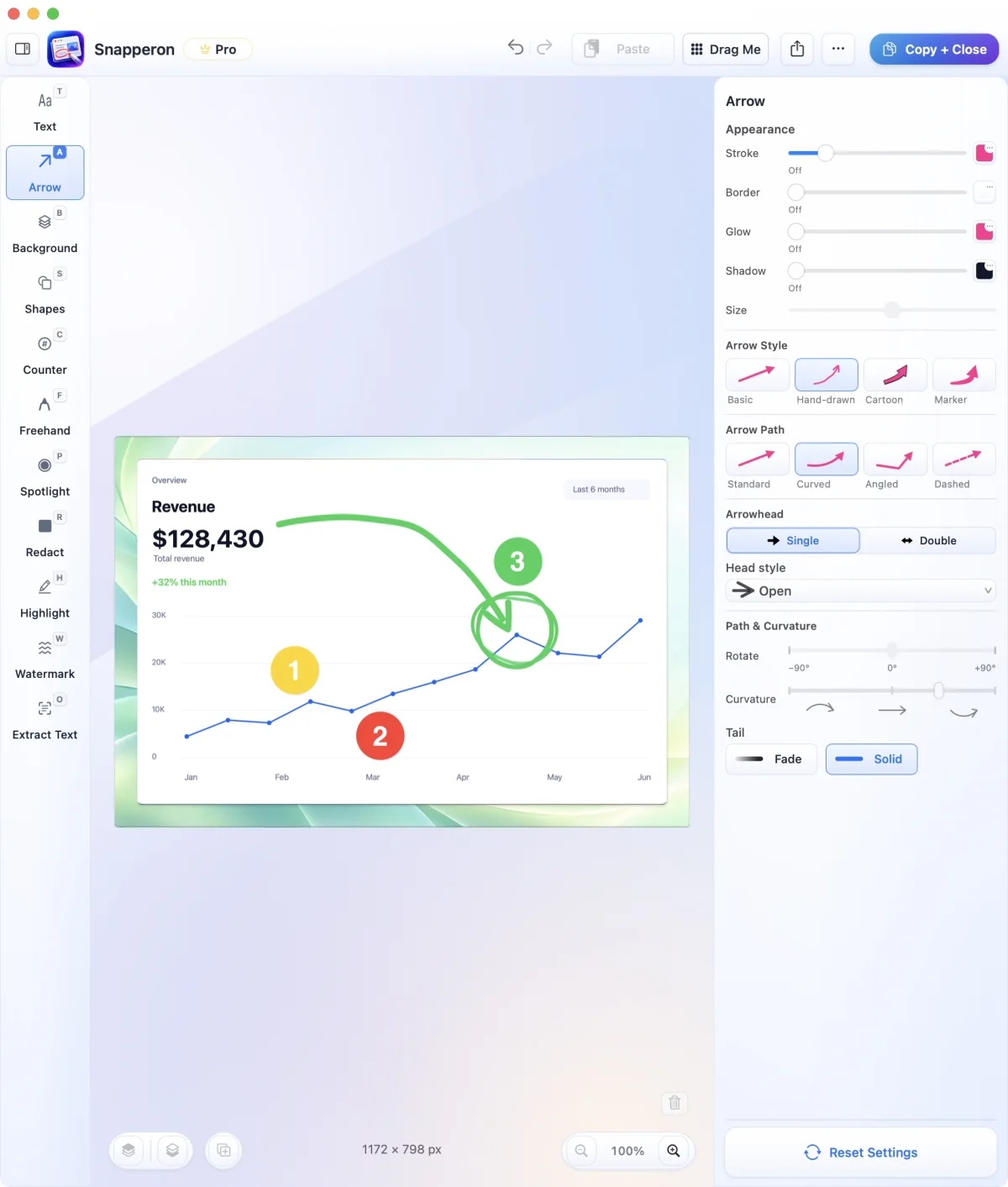
Show exactly where the layout needs work.
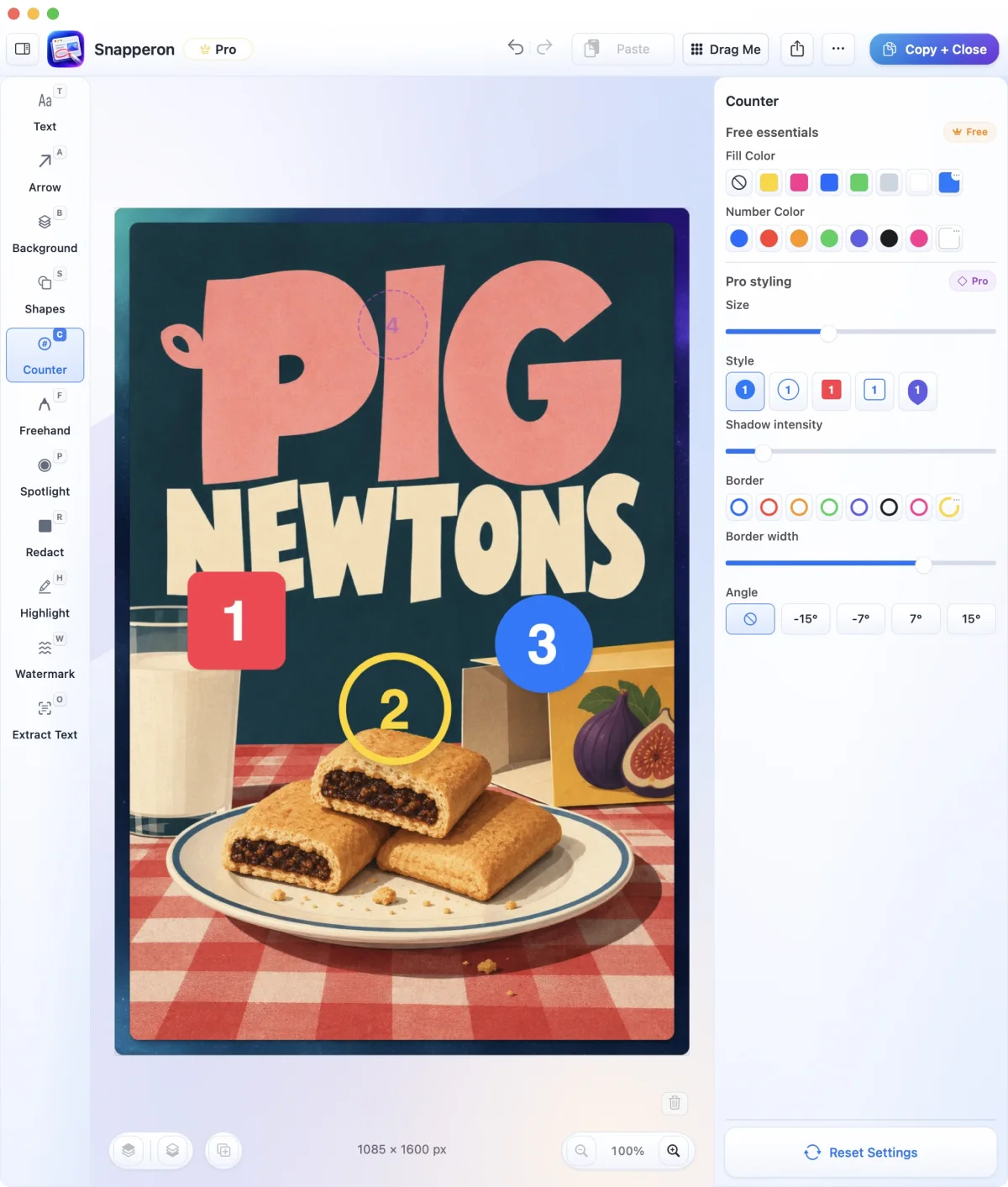
Point a curved arrow at the button that needs moving. Number the next two changes so your designer can work through them in order.
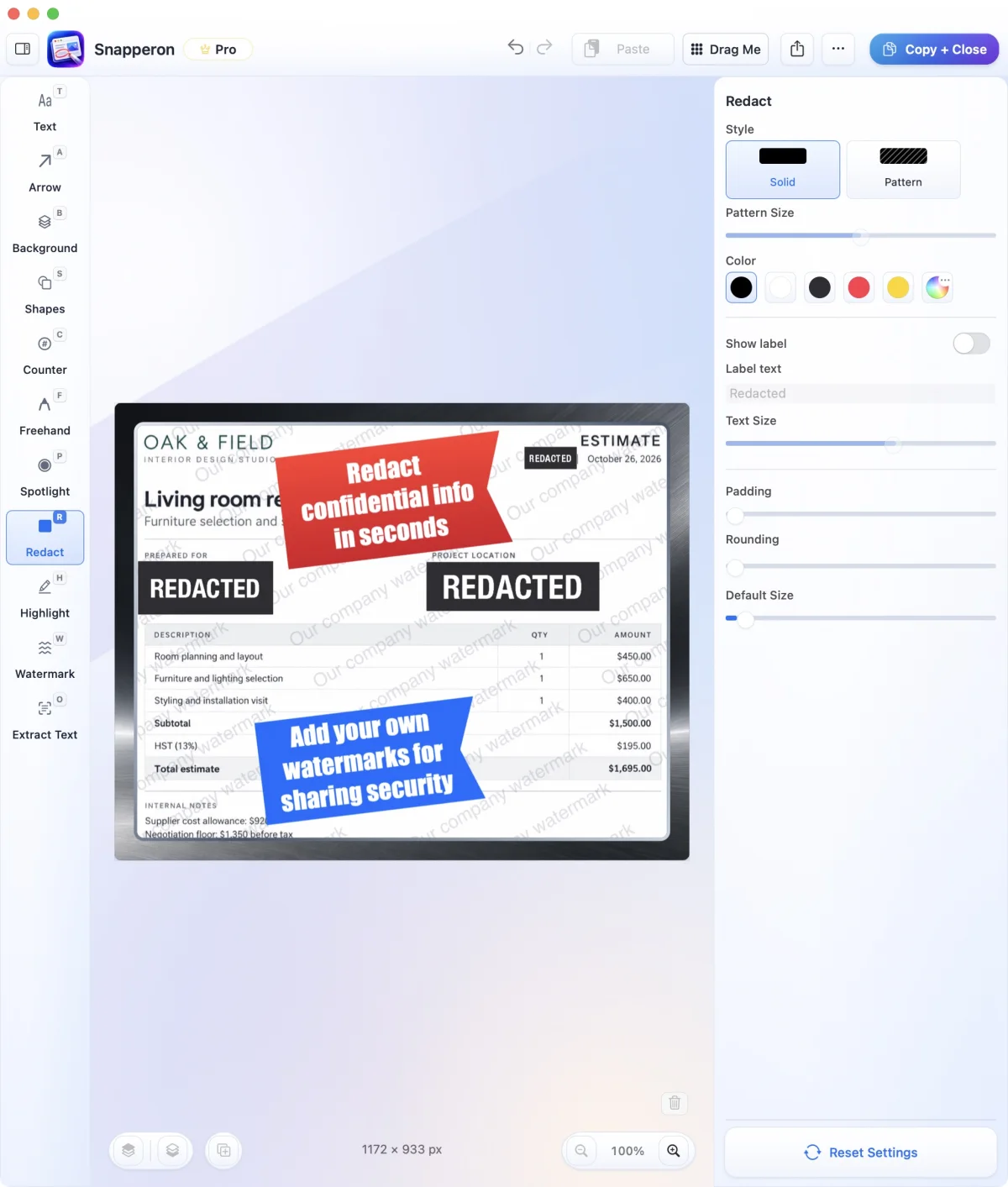
Share the figures your client needs to see.
Keep the total visible and cover the account number with Solid redaction. The pixels beneath the block are permanently covered in the PNG or JPG you share.
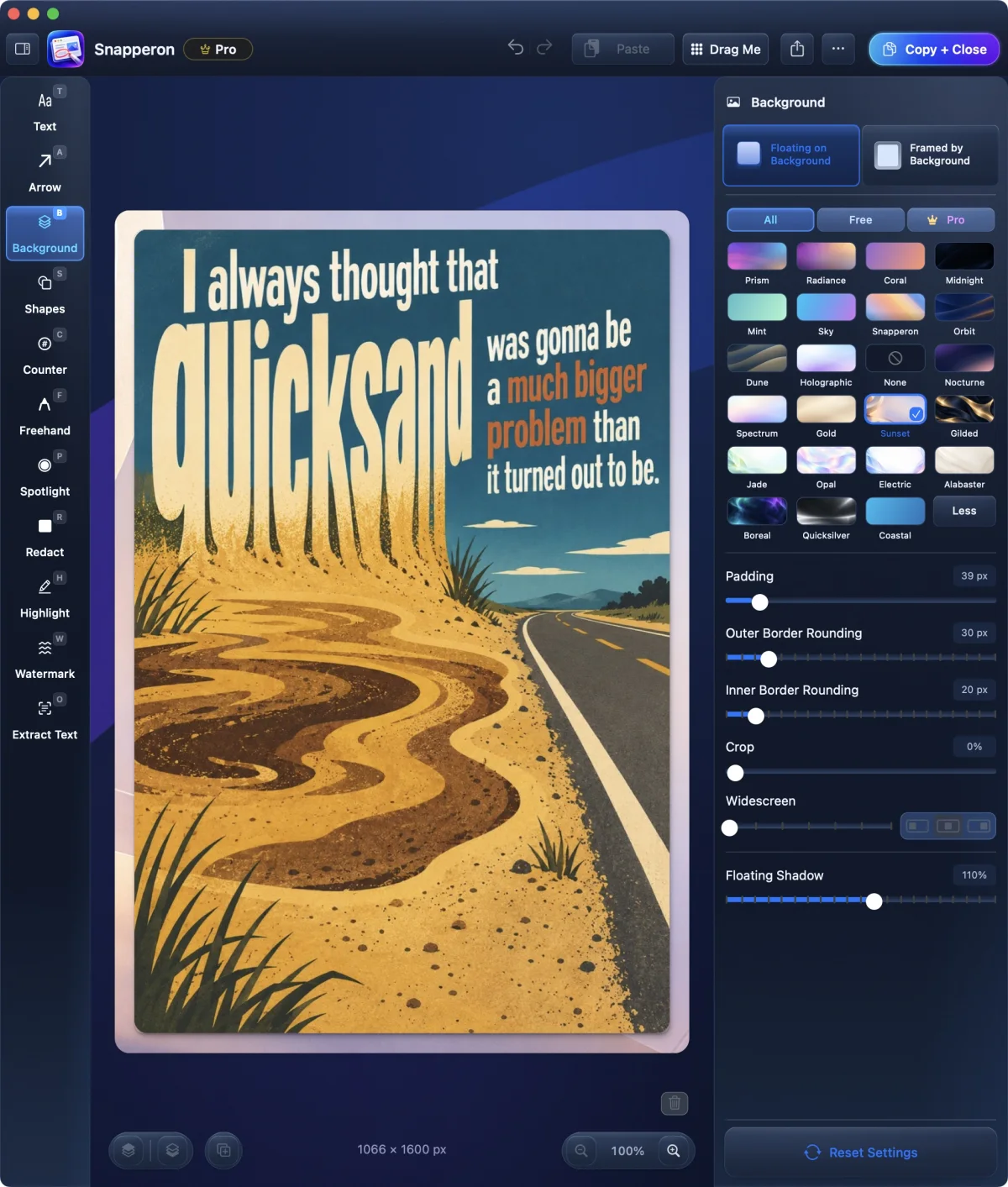
Make the chart fit the proposal.
Give the chart a backdrop, add space around its edges, and finish with a border or watermark. Then paste it onto the slide where you explain the result.
More ways to use Snapperon
Sometimes it’s the address on an invoice. Sometimes it’s a paragraph your client can read on a phone. Start with what you want to send.
Make Readable
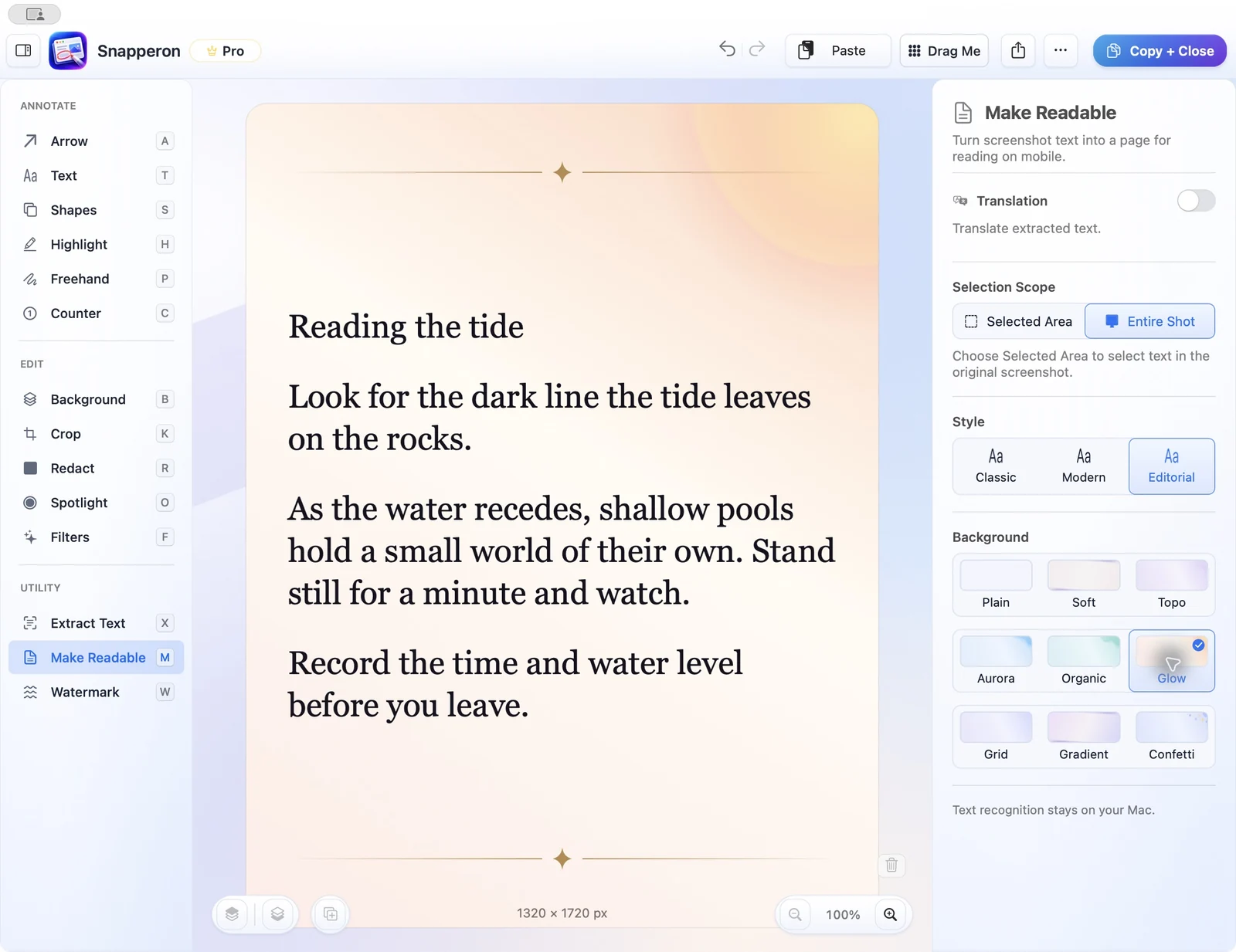
A desktop article can shrink to tiny type in a group chat. Pick the passage in Make Readable. Snapperon wraps the words into a portrait page image with room for paragraphs, lists, and quotations. Copy the page and send it to the group.
Make a reading page →Extract Text
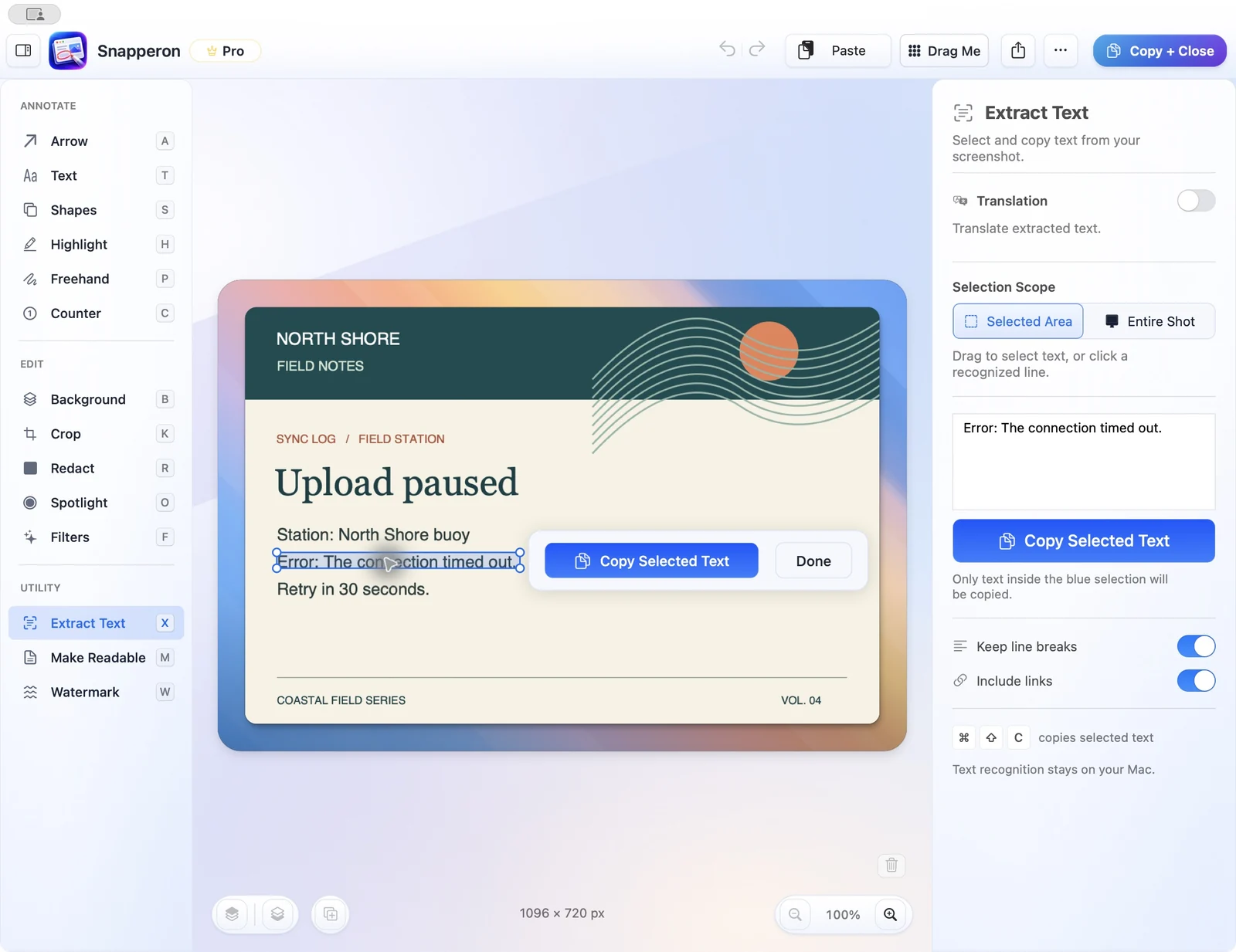
Select a single line, drag across a paragraph, or choose Entire Shot. Preview the words, then paste them into your reply. Turn on Keep line breaks for an address or a multi-line error.
Copy text from an image →Screenshot translation
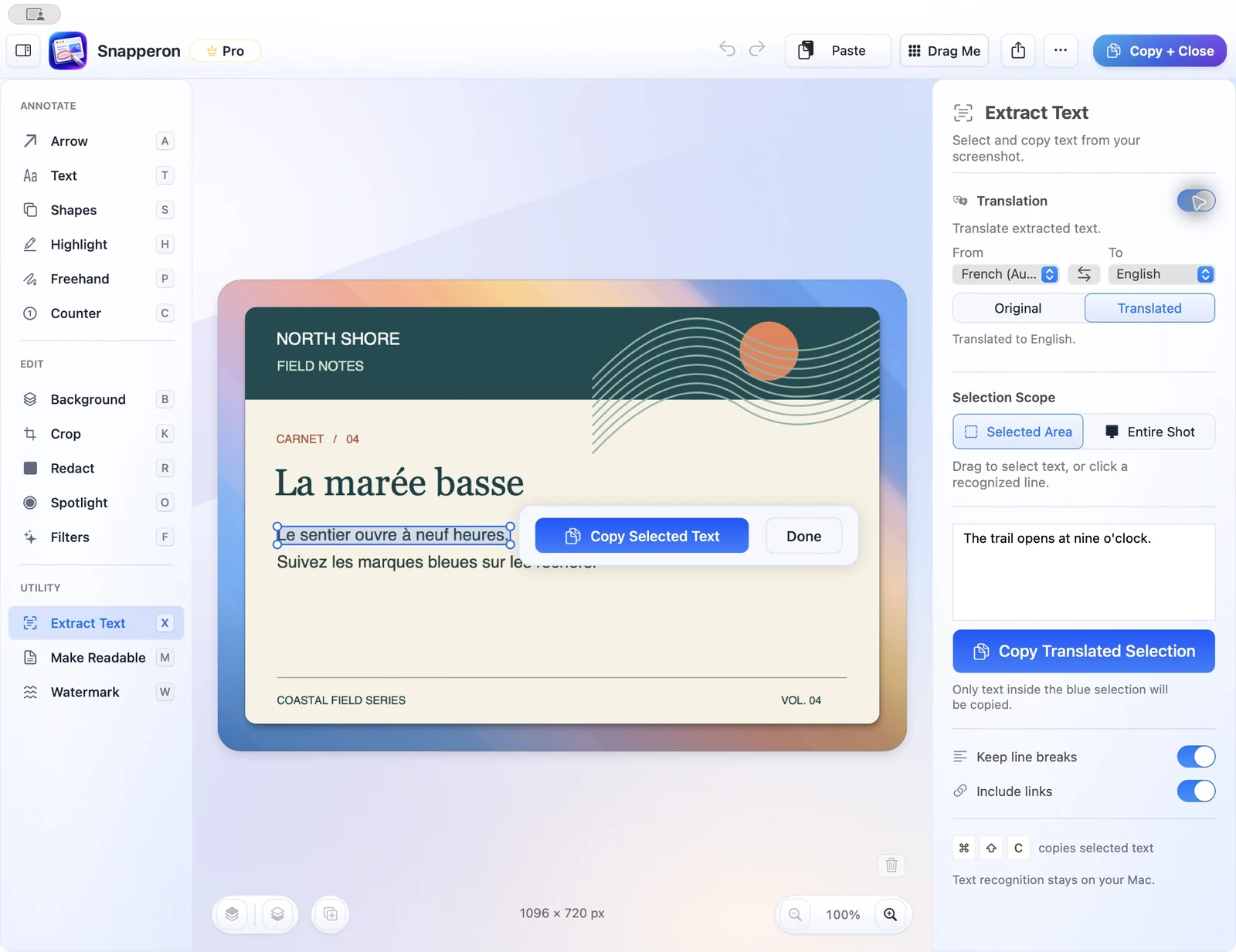
Select the sentence a customer sent and choose a language. Switch between Original and Translated to check the wording. Copy the translation as text, or use Make Readable to share it as a portrait page. Requires macOS 15 or later and a supported language pair. Apple may offer a language download.
Translate a passage →Filters
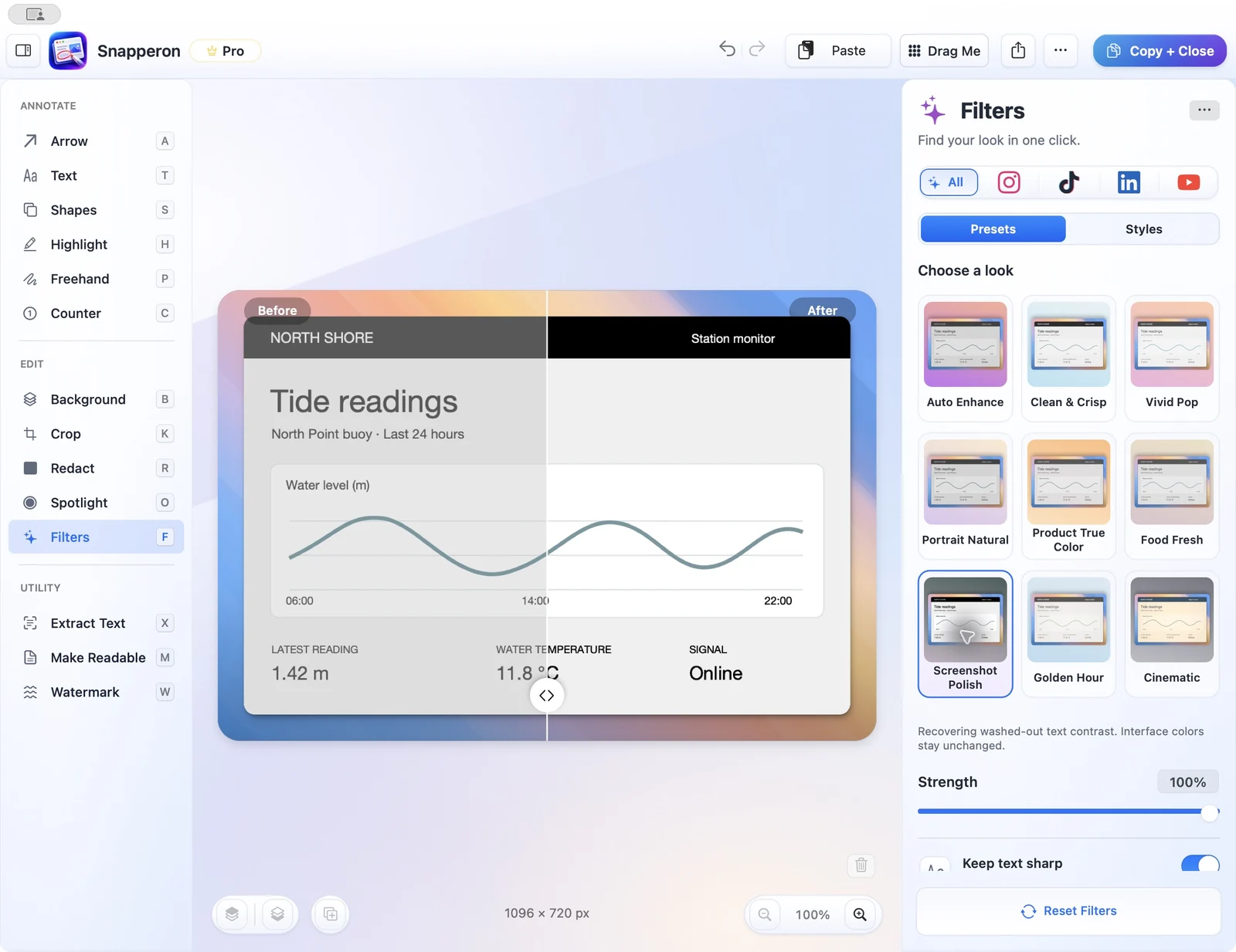
Use Screenshot Polish to bring out faint interface details. Adjust the strength and slide between Before and After while checking the smallest label. For a product photo, try Product True Color to give the packaging definition while keeping its colors recognizable. Both featured presets are Pro.
Crop
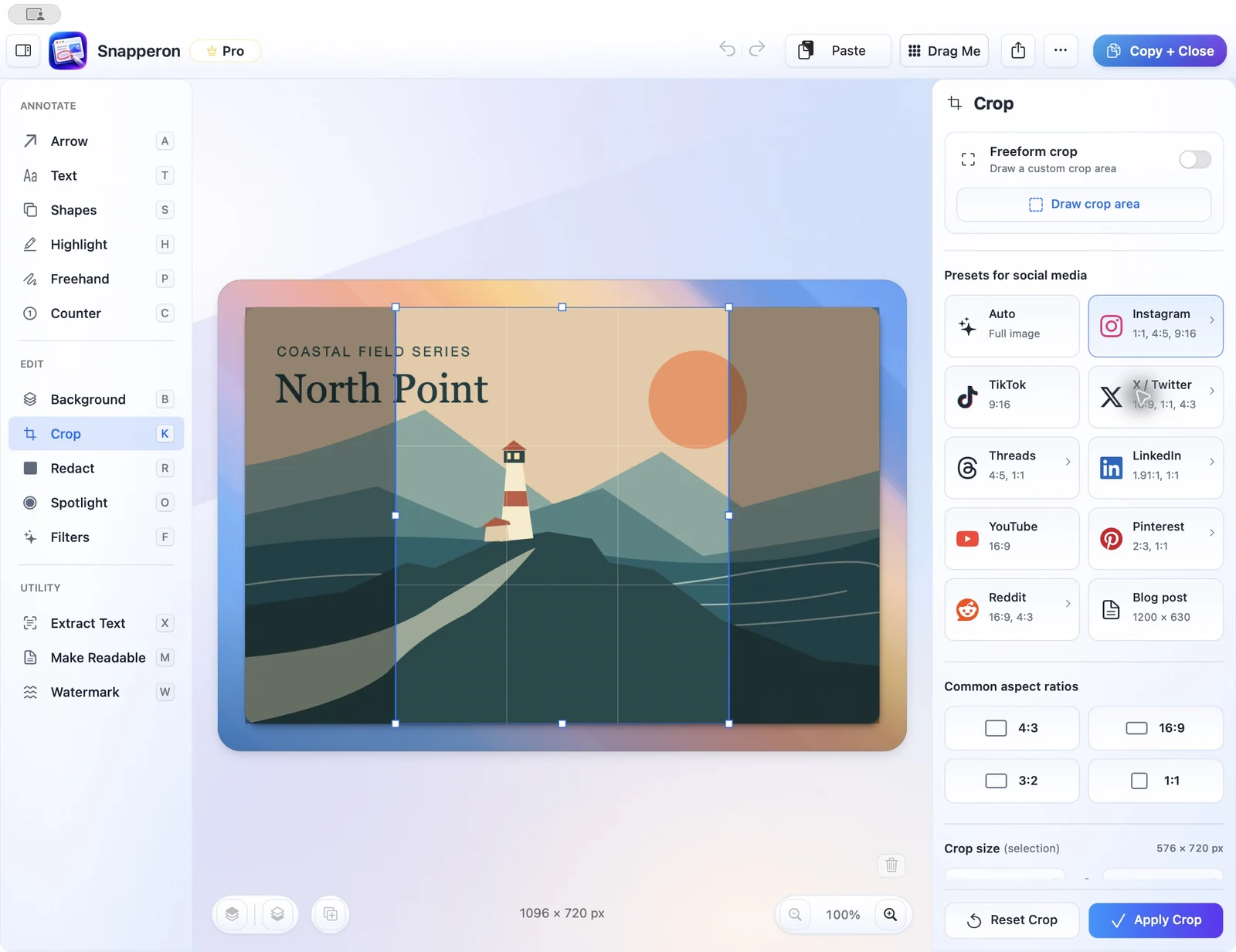
Frame the product once for an Instagram portrait post at 4:5, then choose 9:16 for a story. For a help article, enter the crop width and height in pixels and use the arrow keys to nudge the selection into place. Undo takes you back if you need a little more room.
Clipboard text
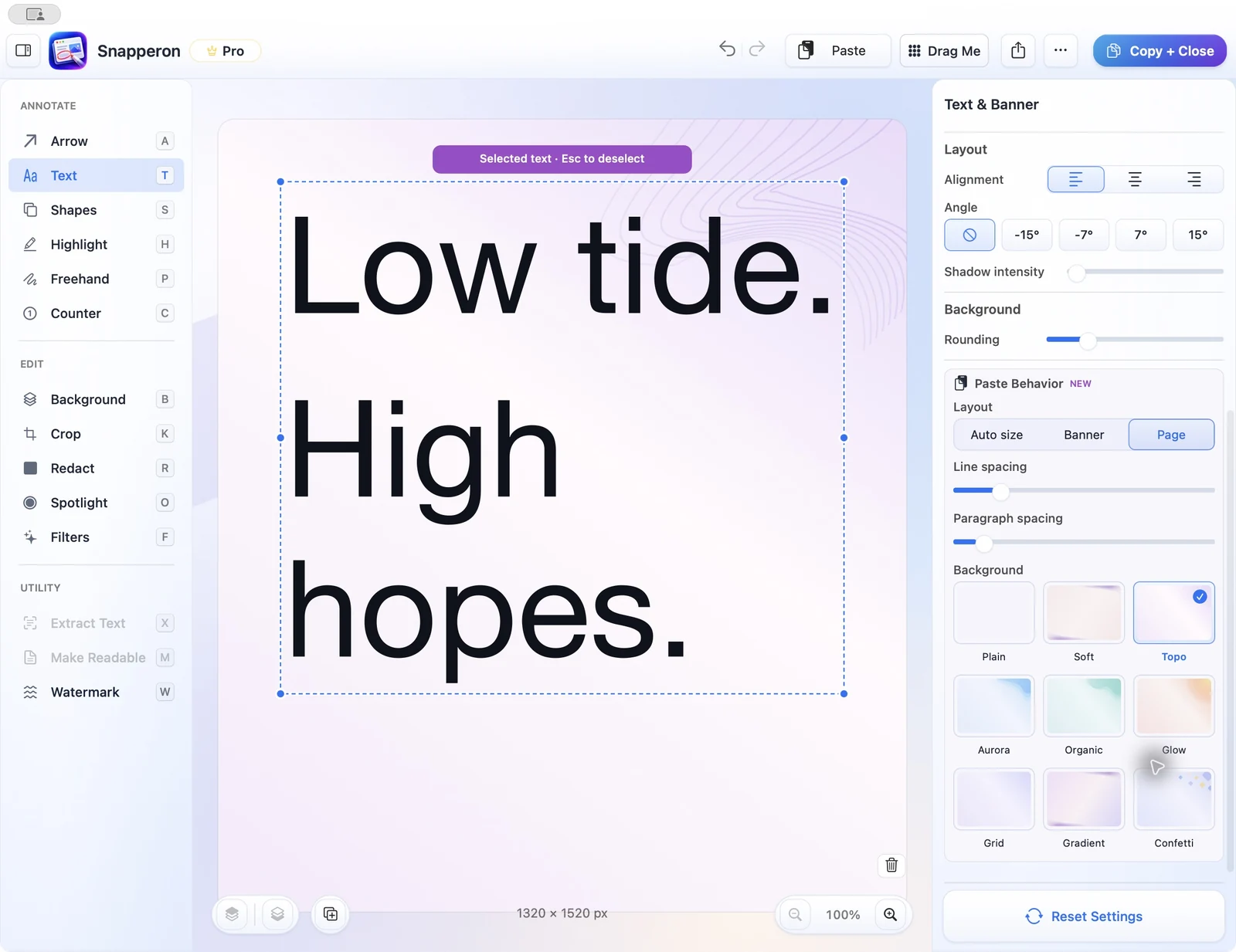
Copy a sentence from your notes and choose Capture text from clipboard…. Keep a short line as a banner or give a longer update a page of its own. Adjust the background and spacing, edit the wording, and paste the finished graphic into your proposal.
Make a quote graphic →Capture a region, window, or display. Open an image or PDF page. If the words are already in your notes, copy them and choose Capture text from clipboard….
Add a callout, number the changes, or cover a private detail. Need the wording? Extract Text lets you select and copy it.
Crop to the shape of your post, fine-tune a photo, or frame the screenshot to match the rest of your deck.
The finished image goes onto your clipboard and the editor closes. Press ⌘V in your email, proposal, or chat. You can also save a PNG or JPG.
Email yourself the link and open it when you’re back at your Mac.
Free · No account needed · macOS 14+ · Apple Silicon
 Snapperon
MAC ANNOTATION & FRAMING TOOLS
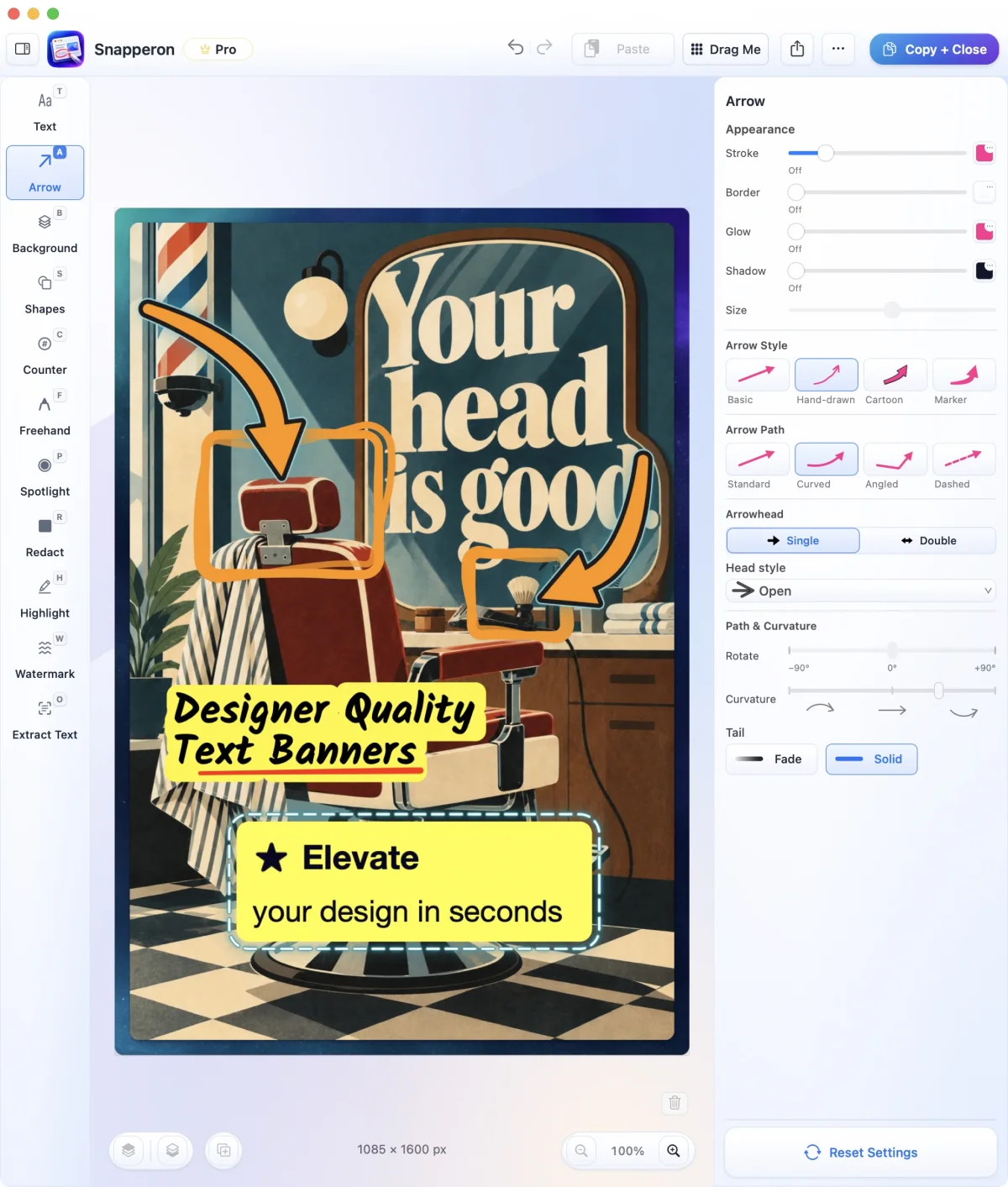
Choose a tool for the point you want to make. A numbered step explains order. A spotlight tells someone where to look first.
Put the instruction beside the part of the screen it refers to.
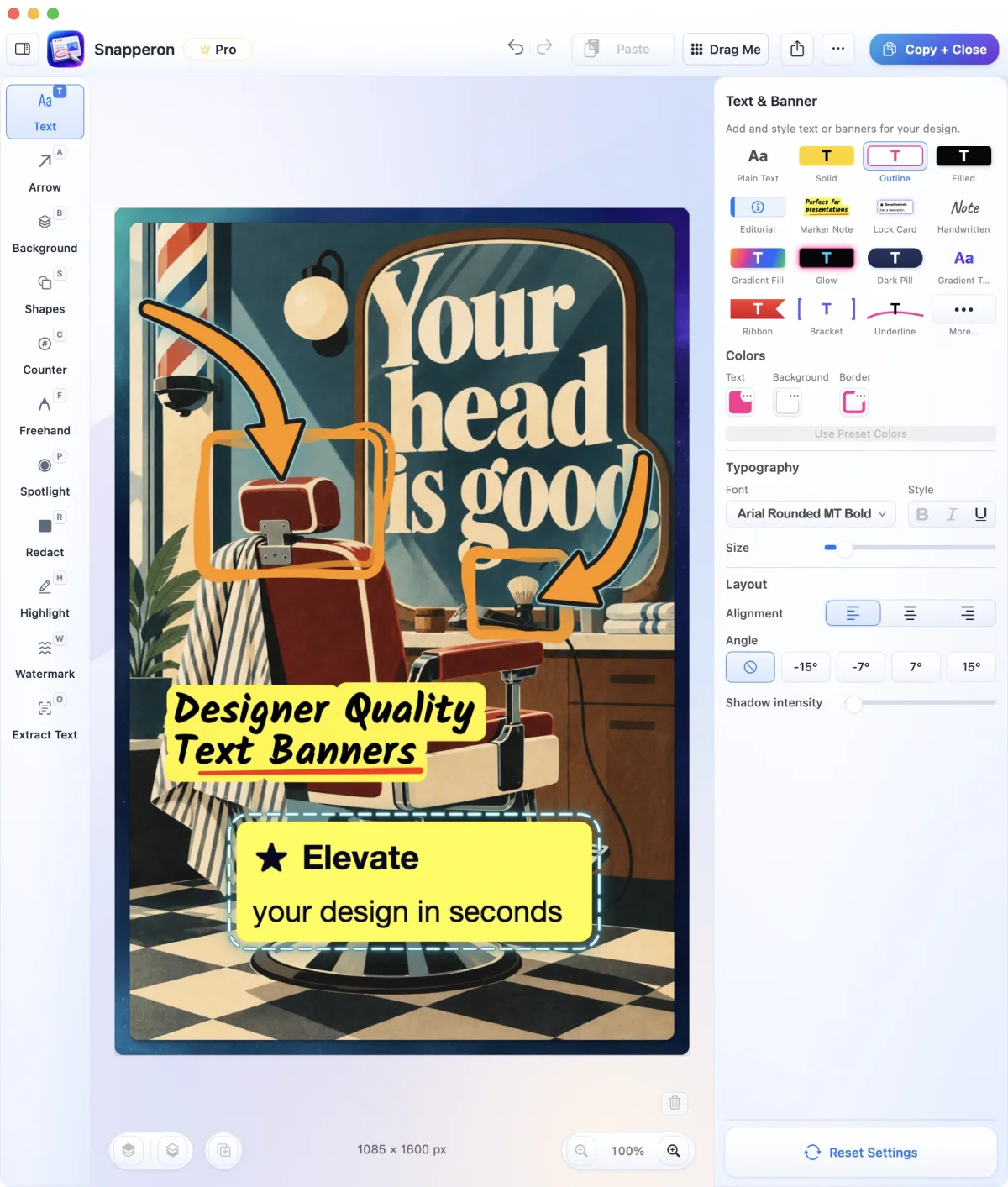
Guide the eye from your note to the exact button, label, or detail.
Number the steps so a client can follow the walkthrough in order.
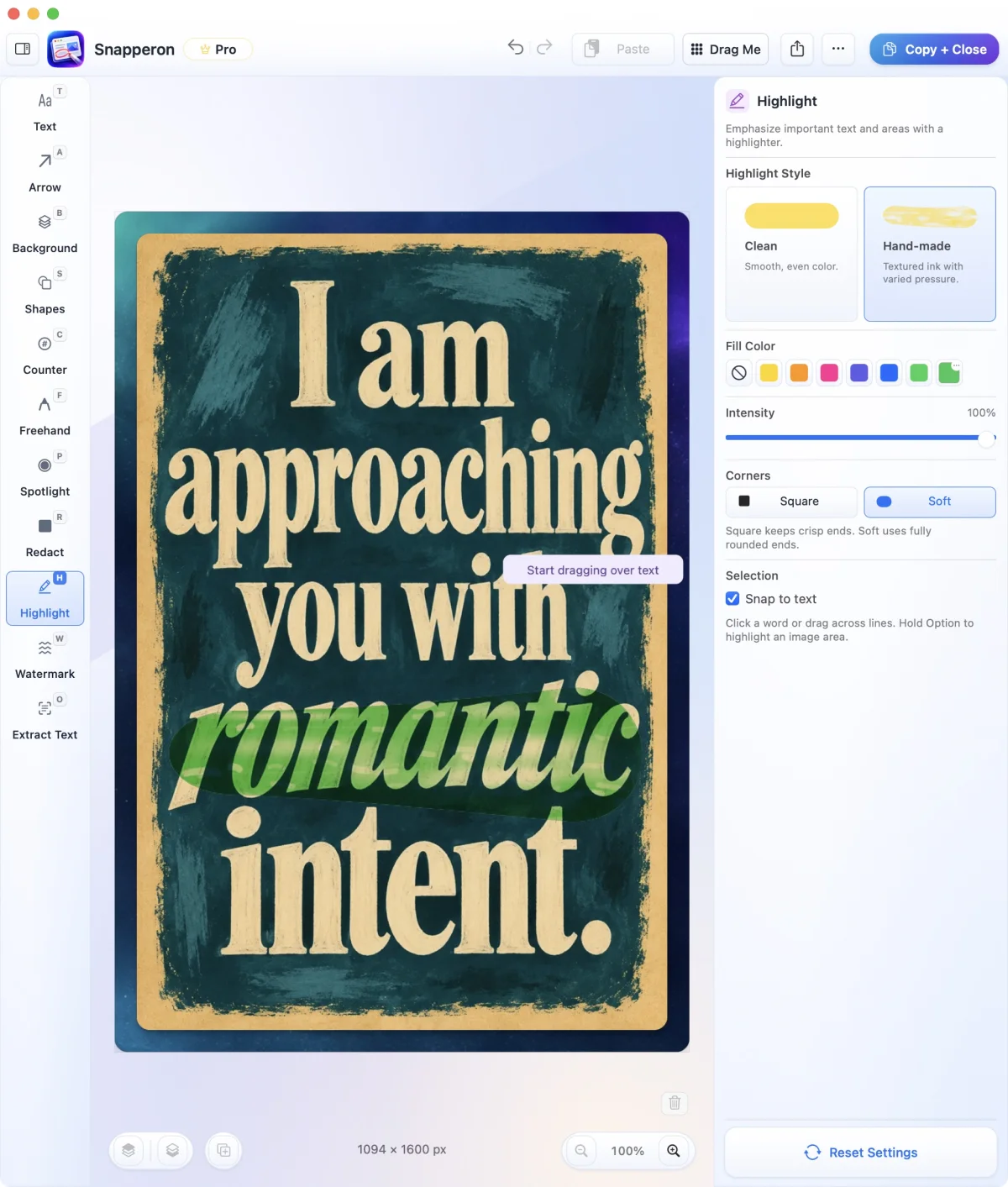
Mark the figure or sentence you want someone to read.
Cover names, account numbers, and confidential figures before sharing the image.
Draw a box around a group of controls or circle one detail.
Dim the surrounding screen to bring one area into focus.
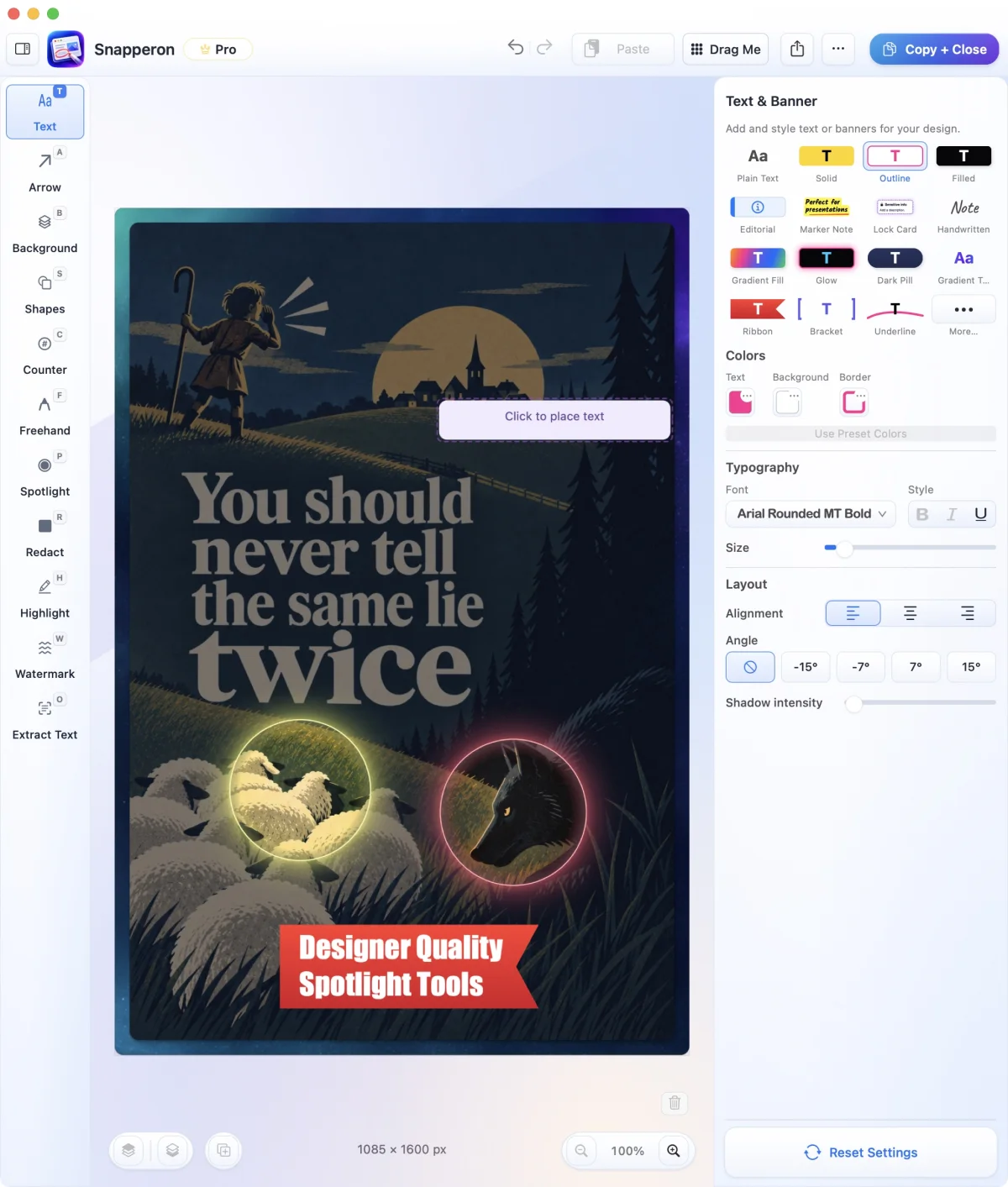
Sketch a quick correction on a layout, floor plan, or site photo.
Add your own mark to work that will travel beyond the original proposal.
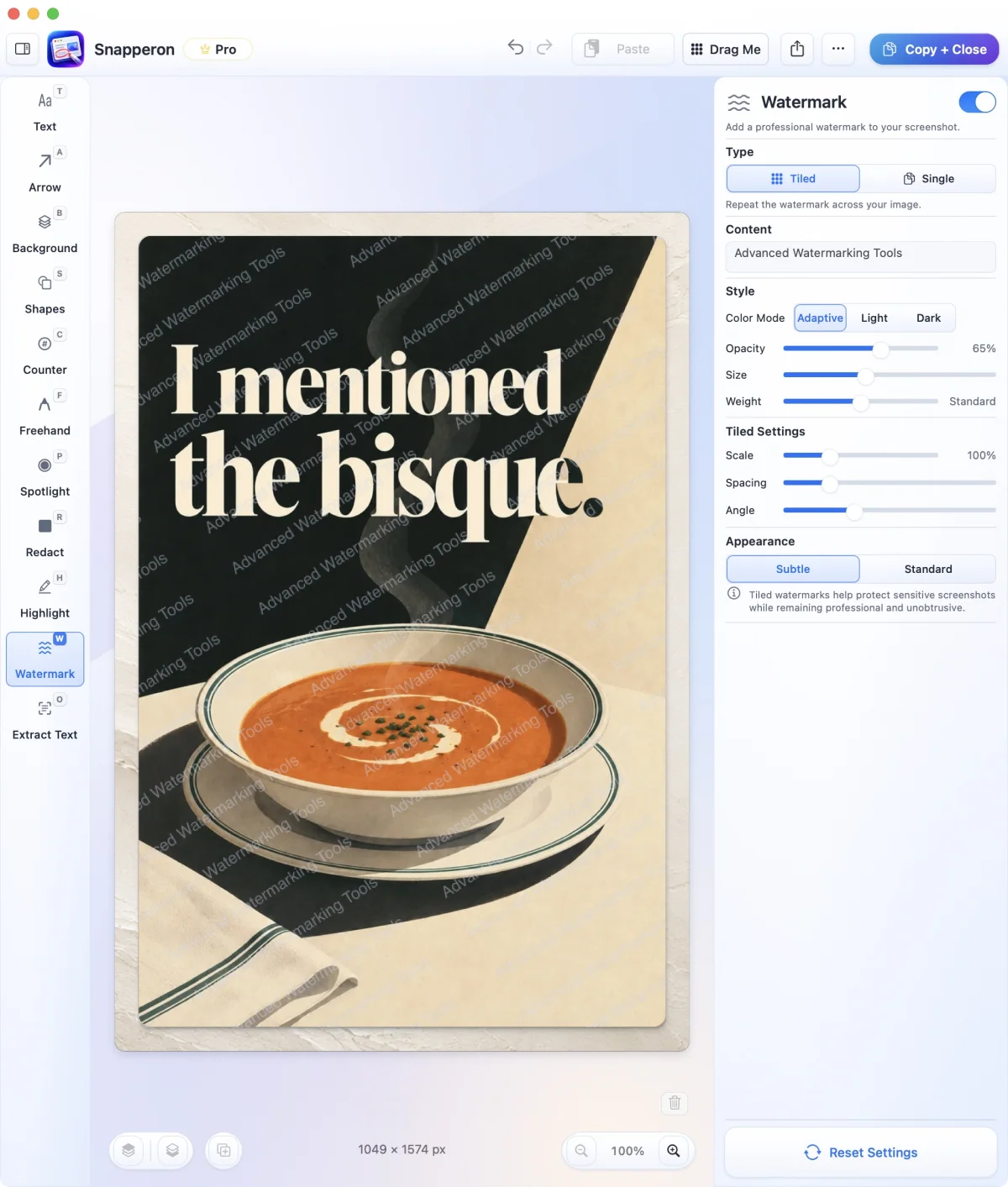
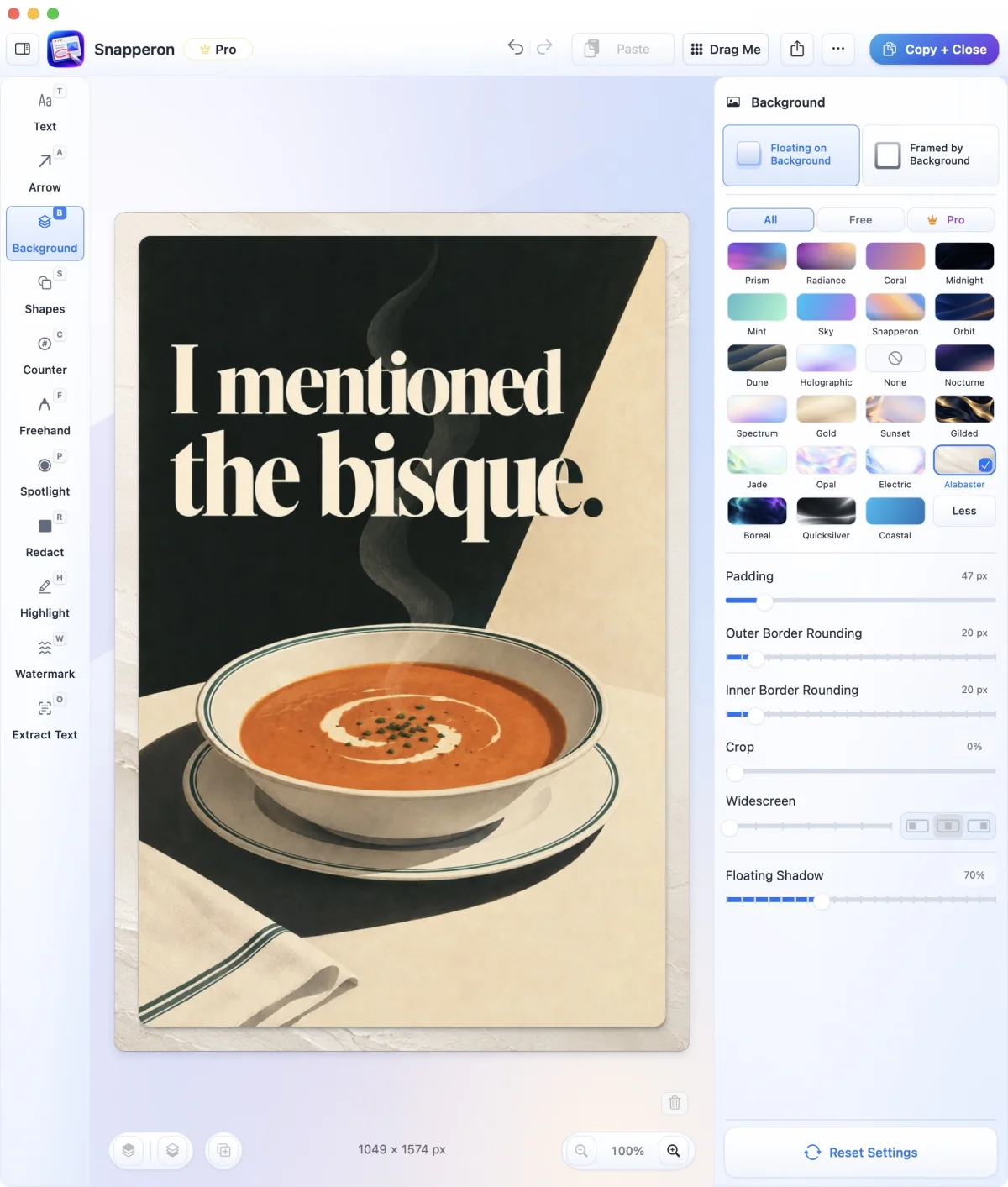
Frame a screenshot with padding, rounded corners, a border, or a shadow.
Capture, markup, redaction, and text recognition happen in the Mac app. Snapperon doesn’t upload screenshots to its servers. You choose which finished images to send. If you connect an AI assistant, its own privacy settings apply to any image or text you share with it.
Email yourself the link and open it when you’re back at your Mac.
Free · No account needed · macOS 14+ · Apple Silicon
BUILT FOR THE WAY YOU WORK
Put a before-and-after in your proposal. Mark what changed, cover the client’s account number, and place their approved quote beside the result.
Give a product photo a little more definition. Crop it for a launch post, then turn three release-note bullets into a graphic for customers.
Pin feedback to the exact control, wall, or fixture you mean. Number the changes on a screen, site photo, or PDF floor plan.
Copy an error code from a customer’s screenshot. If the dialog is in another language, select the sentence and read its translation on macOS 15 or later.
Turn a wide article excerpt into a portrait image your readers can open on a phone. Recognized original-language X and Threads post layouts can also retain the author, avatar, and detected attached image.
Crop tightly around a control, number the steps, and copy the result into your docs. Connect an assistant to repeat a markup workflow across captures.
Connect Claude Desktop or Codex to Snapperon on your Mac. Ask it to number three steps, read the text in an error dialog, or turn release notes into a page. For a batch of annotations, preview the result, apply it in one Undo step, and adjust the labels by hand.
“Read the error message in this screenshot and copy it as plain text.”
LOVED BY INDIVIDUALS AND TEAMS
“I create product launch visuals in minutes. They look like they were made in Figma.”
“Our design feedback is finally crystal clear. Developers get it on the first try.”
“The redaction feature gives me peace of mind when sharing client screenshots.”
FREE TO START. ROOM TO GROW.
Start with the capture, markup, and text tools. Upgrade inside the app when you want unlimited captures, more styles, or control over the watermark on images you share.
| Free $0 Everything you need to start. No account. | Pro From $19.99 a year Unlimited and polished. | |
|---|---|---|
| New screenshots | Up to 10 per day | Unlimited |
| Annotation & redaction | Core styles and Solid redaction | Full style library, plus Labeled and Pattern redaction |
| Watermark on shared images | Snapperon watermark | Your own watermark or none |
| Clipboard text | Banner and Page layouts, backgrounds, and spacing | Included |
| Extract Text, translation, and Crop | Included | Included |
| Make Readable | Classic with Plain, Soft, or Topo | Adds Modern, Editorial, and six more backgrounds |
| Filters | Includes Auto Enhance, Clean & Crisp, and Vivid Pop | Adds presets including Screenshot Polish and Product True Color |
| Local assistant control | 20 commands with Free plan limits | 20 commands with Pro styles and capture allowance |
Screenshot translation requires macOS 15 or later and a supported language pair.
On Free, you can take up to 10 screenshots a day. The count starts over each day. Images you save or share carry a Snapperon watermark. Pro removes both limits.
COMMON QUESTIONS
Everything to know before you download.
Yes. Download it, use all the core annotation tools, and keep using it as long as you like. Free includes up to 10 screenshots a day. Images you save or share carry a Snapperon watermark.
Installation starts a 3-day Pro trial. No credit card, no account and no automatic charge. After the trial, keep using Free or choose Pro.
Pro adds more styles, unlimited screenshots, and watermark control. See Free vs Pro
No. Download Snapperon, open it, and start. There's nothing to sign up for.
Snapperon requires macOS 14 or later on a Mac with Apple silicon (M1 or newer). Screenshot translation requires macOS 15 or later.
To check, click the Apple logo in the top-left corner of your screen and choose About This Mac. Next to “Chip” you should see Apple M1, M2, M3, or similar. Your macOS version should be 14 or higher.
If it says “Intel” instead, Snapperon won’t run on that Mac. Snapperon is Mac-only.
Download the file, open it, and drag Snapperon into your Applications folder. Then open Snapperon from there.
The first time, your Mac may ask you to confirm. Click Open. Step-by-step on the download page
Both are the same Snapperon app. You can download it directly from this page today, and a Mac App Store version is coming soon.
Pro is bought separately in each version, so a Pro purchase in one doesn't carry over to the other. Free includes all the core annotation tools, so you can start now and decide on Pro later.
Yes. Apple has scanned this download for malicious software and confirmed it comes from a registered developer, which is what “signed and notarized” means.
The first time you open it, your Mac may ask you to confirm. Click Open.
Snapperon recognizes text and edits screenshots on your Mac. A connected AI assistant handles the images or words you share with it under its own privacy settings. Read our privacy promise
To take screenshots, your Mac needs your permission. When Snapperon asks, choose Allow.
If you missed it, open System Settings, then Privacy & Security, then Screen Recording (called “Screen & System Audio Recording” on newer versions of macOS). Turn on Snapperon and reopen the app.
Yes. Solid redaction permanently covers hidden details in the PNG or JPG image you save or share, so nobody can remove the box from that image to see what was underneath.
For passwords, account numbers, and other very sensitive details, use Solid. This does not change your original image or PDF.
Two things: up to 10 screenshots a day, and a Snapperon watermark on the images you save or share. Your count starts over each day. Everything else core, including all the annotation tools, is included.
A screenshot counts when Snapperon finishes taking a new screenshot. At the limit, you see an upgrade prompt, but you can still review and copy your last screenshot. Your count resets at midnight on your Mac’s clock.
Unlimited screenshots, the full library of styles, more backgrounds and borders, a custom watermark or none at all, and more redaction options: Solid, Labeled, and Pattern. Compare Free and Pro
Monthly ($2) is the most flexible. Annual ($19.99) works out to about $1.67 a month and saves about 17%.
Lifetime ($38.99) is a single payment for Pro in this app, about the cost of two years of Annual. If you'll use Snapperon regularly, Annual or Lifetime costs less over time.
Prices are in USD.
Upgrade from inside Snapperon.
Direct download: Choose a plan and pay through PayPal. To cancel, open Pro settings in Snapperon, choose Manage License, then Cancel Subscription Renewal to stop future automatic payments.
Mac App Store version: Buy inside the app when it is available. To cancel, use your Apple subscription settings.
Monthly and annual plans charge you again automatically until you cancel. Lifetime is a one-time payment.
If you cancel a subscription, you keep Pro until the end of the period you paid for. Snapperon then switches back to Free.
Your Mac can capture and mark up screenshots in basic ways.
Snapperon brings arrows, numbered steps, spotlights, banners, redaction, and polished backgrounds together to help you get screenshots ready to share. Choose Copy + Close, then paste where you need it.
Compare Snapperon with CleanShot X, Xnapper and Deskeen, or browse all comparisons.
Yes. Open Extract Text, select a line or area, and check the preview. Copy the recognized words as plain text. Text recognition (OCR) runs on your Mac using Apple Vision. A visible web address copies as text.
Yes. Open Extract Text, turn on translation, and select the passage. Choose the target language and switch between the original and translated text. Requires macOS 15 or later and a supported language pair. Apple may offer a language download.
A portrait page image. Snapperon recognizes the words in the whole shot or a selected passage and wraps them to the page width. You can copy the image into a chat or save it as a PNG or JPG.
Yes. Choose Capture text from clipboard…. Use Auto size, Banner, or Page. The words stay editable in Snapperon. Copy or export the finished design as an image.
Yes. With Snapperon connected, Claude Desktop or Codex can request recognized text or ask Snapperon to copy it with clipboard access. Recognition happens on your Mac. Your assistant handles the content it receives under its own privacy settings.
Yes. You can open a PDF and mark up its pages.
Copy your finished image and paste it into an email, document, or chat. You can also save it as PNG or JPG. Saving as a PDF is not available.
Snapperon includes a built-in local Model Context Protocol (MCP) server with 20 commands, tested in Claude Desktop and Codex Desktop. Assistants open local images or PDFs, capture authorized windows, add native callouts or redactions, preview the result, and export or copy. Other clients have not been verified here.
In Claude Desktop, use native Open File for local images/PDFs or capture Mac windows and displays. Raw chat-attachment byte transfer failed in client testing.
Yes. MCP controls the real native Snapperon editor. Every arrow, label, counter and shape remains an editable layer. Move, resize or restyle it by hand. Press Undo once to revert an entire committed AI batch. PNG/JPEG output is flattened; the layers remain in the editor.
Snapperon recognizes text on your Mac without uploading screenshots to its servers. An assistant with source access may see beneath editable redactions. Share the flattened, redacted export when only the finished image should be visible. The assistant’s privacy settings apply to what it receives.
Enable access in Assistant Connections. Local assistants share the access you enable; macOS Screen Recording, authorized windows/displays, approved export folders and clipboard permissions still apply. This is local Mac app control, not a hosted cloud API.
Image generators can alter screenshot details and UI text. Scripts vary in quality and commonly produce flattened output. Snapperon keeps the original source, applies native styles and auto-fitting labels, and lets the assistant preview before committing. You can adjust layers by hand and finish with Copy + Close.
Still have a question? Email us at support@snapperon.com.
Find Snapperon in the Mac app community.
Open a capture, point out the detail, and paste it into the work you’re already doing.
Email yourself the link and open it when you’re back at your Mac.
Free · No account needed · macOS 14+ · Apple Silicon
Email sent
We sent your Snapperon download link to:
Can’t find it? Check your spam or junk folder.
Just your download link. No mailing-list signup.
While you’re here
See how Snapperon worksmacOS 14+ · Apple Silicon